Tool guide
Each tool with a picture of it and how to use it, numbered under the part of the desk that looks after it.
VAULTAGE
Runs the desk and consults the right seat on your behalf. Ask about your rules, your risk, your preparation, your health or your review, and the right seat answers.
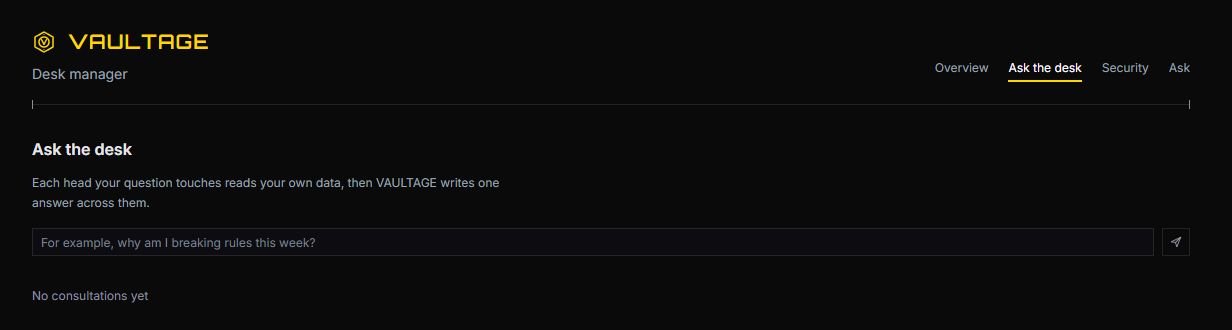
Ask the desk
Ask the desk takes a question about your own trading, passes it to each part of the desk whose area it touches and writes one answer from what they found in your record. It reads your data only while AI processing is switched on in Profile, Data and privacy, and with it off VAULTAGE answers from its written guides instead.
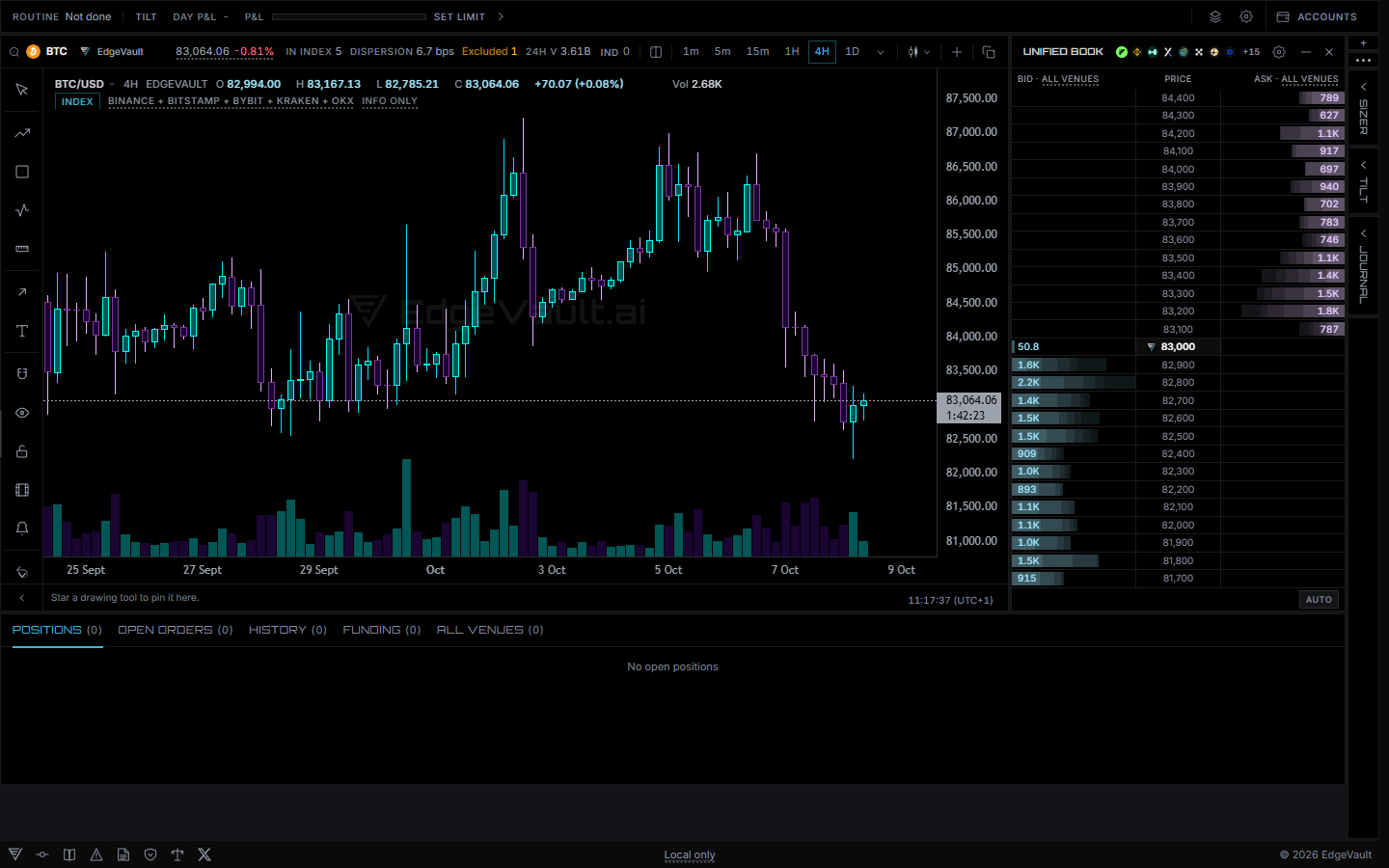
Terminal
The terminal puts the venue's own chart, order book, position sizer and tilt tracker on one screen, and once you're signed in your layout, drawings and settings follow you to every device. A panel you've closed comes back from the + menu on the tab strip, and you can drag any panel by its header to lay the desk out the way you work.
Vault Arena
Vault Arena is a public timeline of process records showing whether the rules were followed, whether the loss limit held and how long the run is, and it never shows profit, loss, balance or position. Your own record only goes up there once you've claimed a handle and switched on Post my process record in Profile, Data and privacy.
Export everything
Export everything, in Profile under Data and privacy, saves every record on your account as one readable JSON file for your own backups. Your records are decrypted in your browser before the file is written, so if they're locked on this device it asks you to open them first.

VOW
Tracks your decision timing, hesitation and whether you followed your plan. Checks your rules against your fills and records a break when it happens.
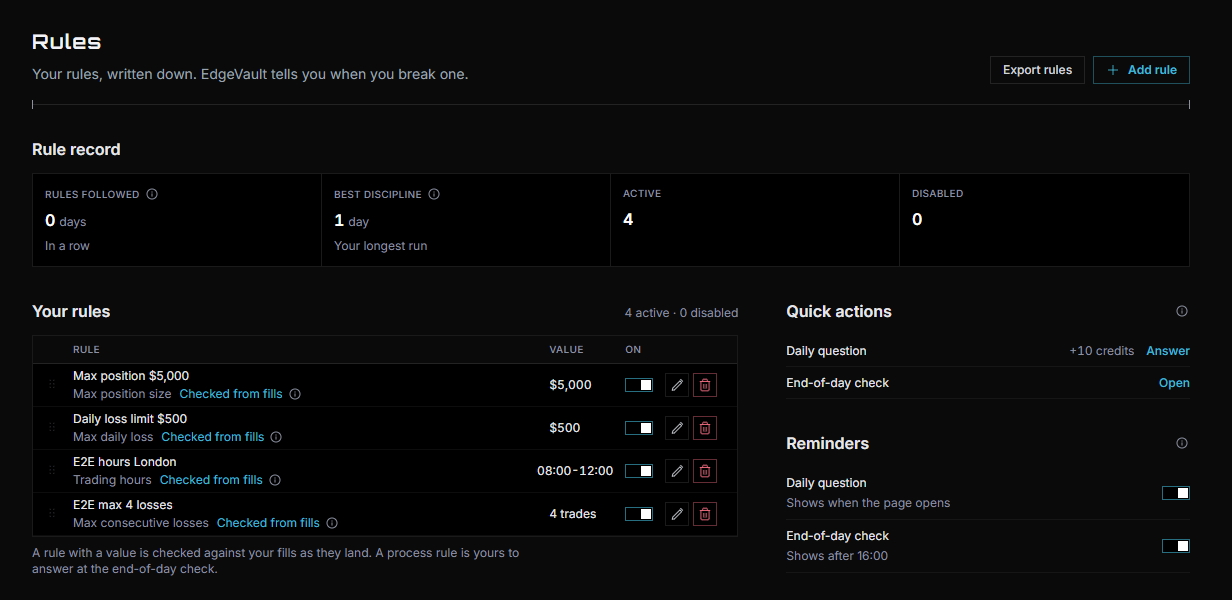
Rules
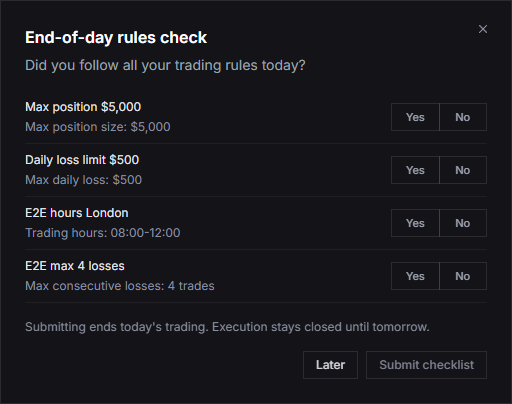
These are the rules you trade by, written in your own words, and a rule with a value, like a max daily loss in your currency, is checked against your fills as they land. A process rule your fills can't show is yours to answer at the end-of-day check.
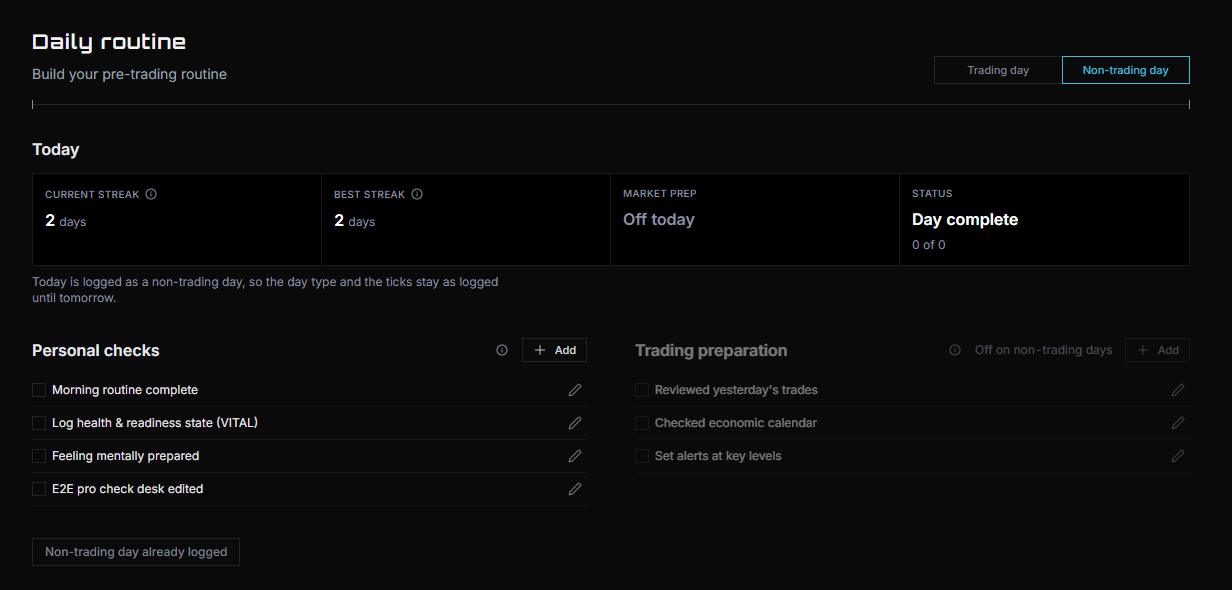
Daily routine
The routine is your personal checks and your trading preparation, ticked off before the session and logged with Activate trading day. On a day you're not trading, set the day to Non-trading day and Log non-trading day keeps your routine streak going without the market prep.
End-of-day check
The end-of-day check asks whether you kept each of your active rules today, with room to say why when one was broken, and it opens once your routine is logged. Submitting it ends your trading day and a broken rule resets your rules streak, and Reminders on the Rules page can open it for you after 16:00.
Decision trees
A decision tree is a set of questions you write for your entries, management or exits, where each answer leads to the next step and ends at the outcome you chose, with your own screenshots of the setup alongside. They sit on Trade execution under the system you pick, and you can start one from a template or from a blank tree.
Hesitation timing
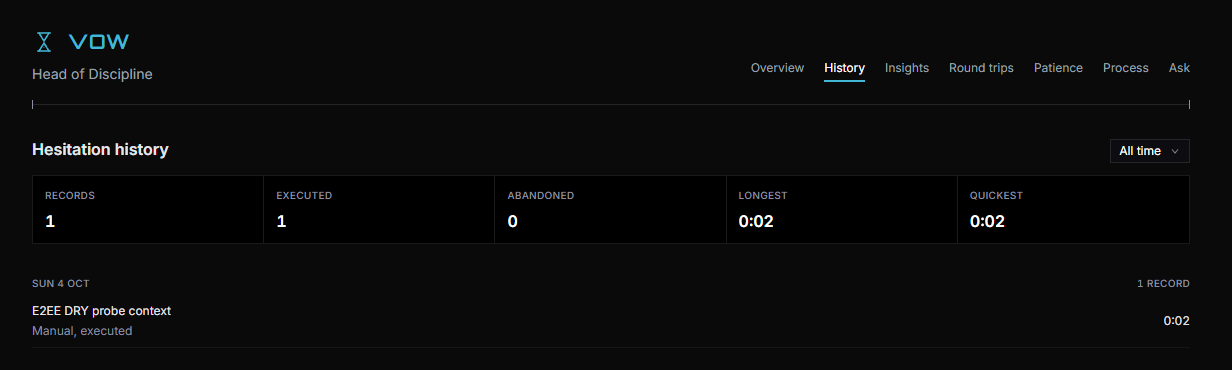
VOW times the gap between finishing an execution checklist and placing the order, and History on VOW's page lists each one by trading day with whether it was executed or abandoned. Insights then shows your times by hour and this week against last week.
VIGIL
Watches your position sizing, leverage and tilt as you trade. Sizes a position from your risk and your stop. Shows when an order would pass your daily loss limit.
Position sizer
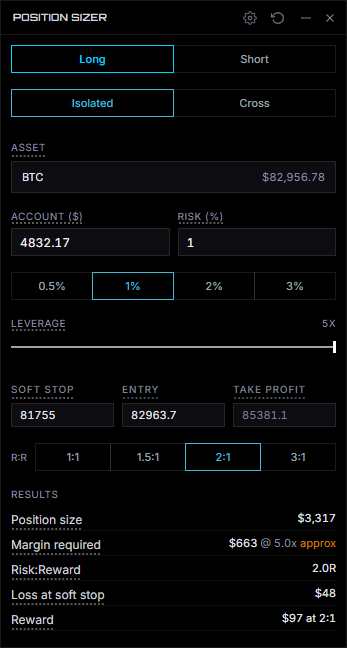
The sizer works backwards from where you'd be wrong, so your account, the percentage you're prepared to lose, the entry and the soft stop give the size, the margin and the loss at your stop. Size from in the sizer settings decides whether that risk is measured to your soft stop or to the liquidation price, which is the venue's liquidation price, and it starts on your soft stop.
Tilt tracker
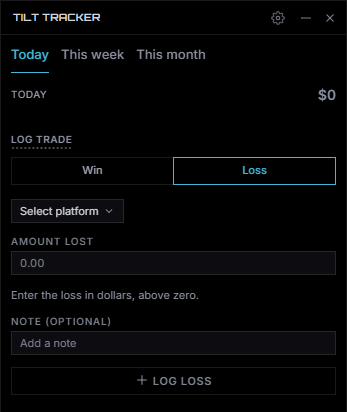
The tilt tracker logs wins, losses and fees from any platform against your daily loss limit, which reads the max daily loss rule on your Rules page when you have one. With Hold order entry at 100% of limit switched on in its settings, crossing a limit set in currency turns EdgeVault's own order entry off until midnight, while exits, reduce-only closes and cancels always go through.
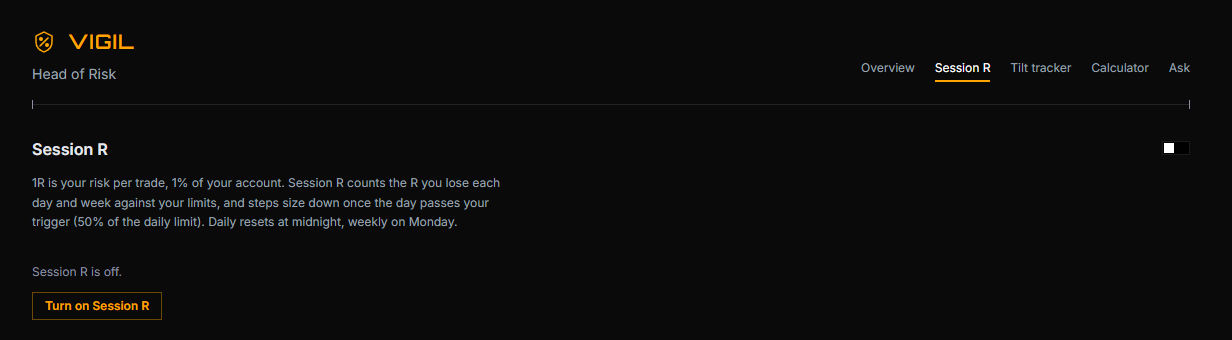
Session R
Session R on VIGIL's page sets your risk per trade and a daily and weekly loss limit in R, and steps your size down once the day's losses pass the trigger you set as a share of the daily limit. The session figures are kept in this browser and start fresh each trading day, while the limits themselves are saved to your account.
VISION
Scans for patterns, shows the markets your own system has in play, runs backtests, and holds the economic calendar and news.
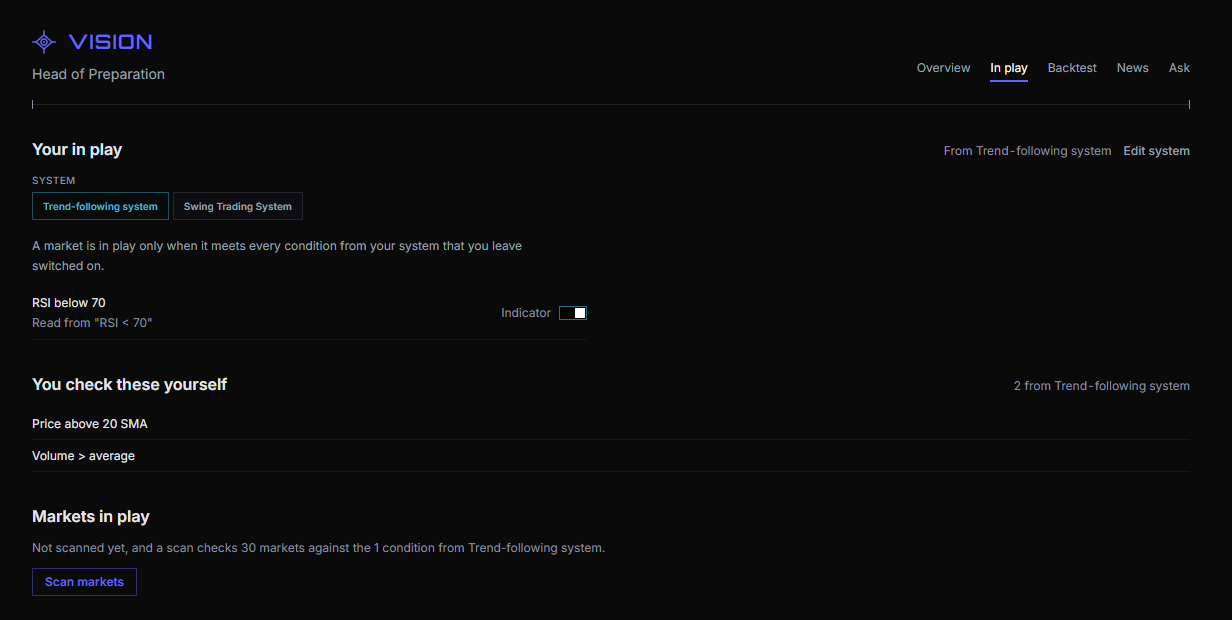
In play and backtests
In play reads the entry conditions from your own system on the Systems page and lists only the markets that meet every one it can scan from price and volume, with anything it can't read listed for you to check yourself. Backtest runs the same conditions over a past period, in all markets or in bull, bear or sideways markets only.
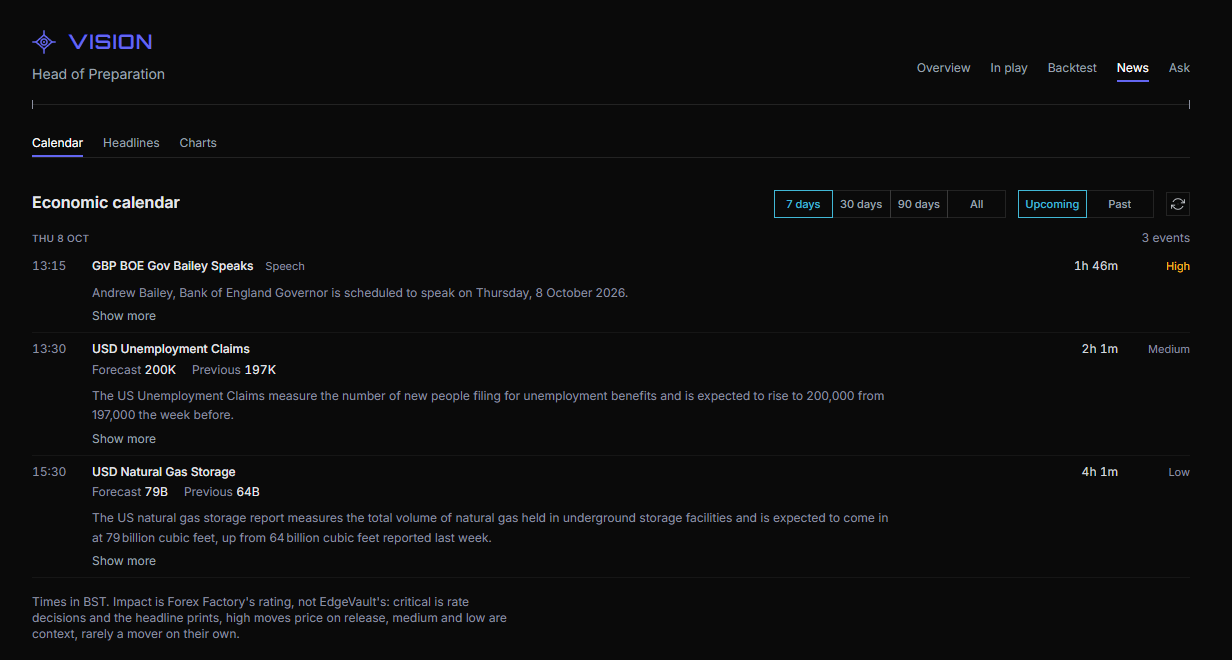
News and the calendar
The News tab on VISION's page carries the economic calendar with the forecast, the previous figure and the actual once it lands, and the headlines as they break with their source. The calendar looks back as well as ahead, so you can see how last month's releases came in.
VITAL
Logs your sleep, exercise, mood and stress each day and shows how this week compares with last week. Reads your A, B or C game state from your recent fills.
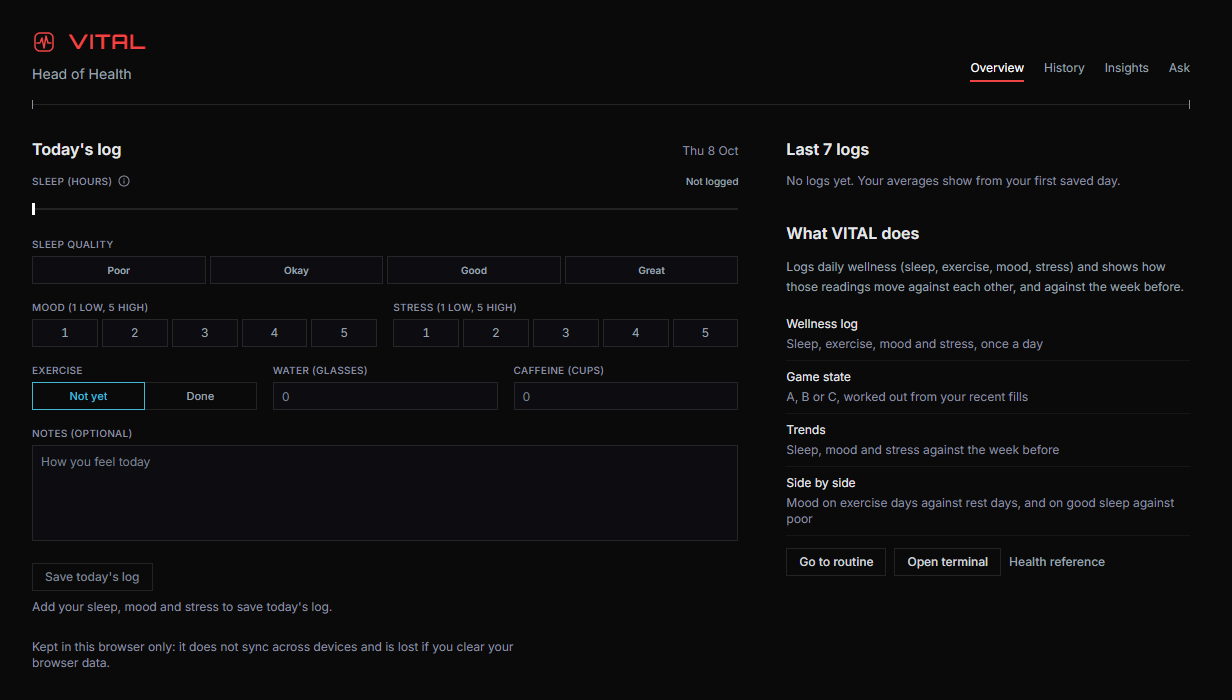
Health log
VITAL logs your sleep, mood, stress, exercise, water and caffeine once a day and shows this week against the last, with sleep, mood and stress needed to save a day. The log is kept in this browser only, so it doesn't carry over to your other devices.
VERSE
Keeps your journal and reports which closed trades you have not reviewed.
Journal
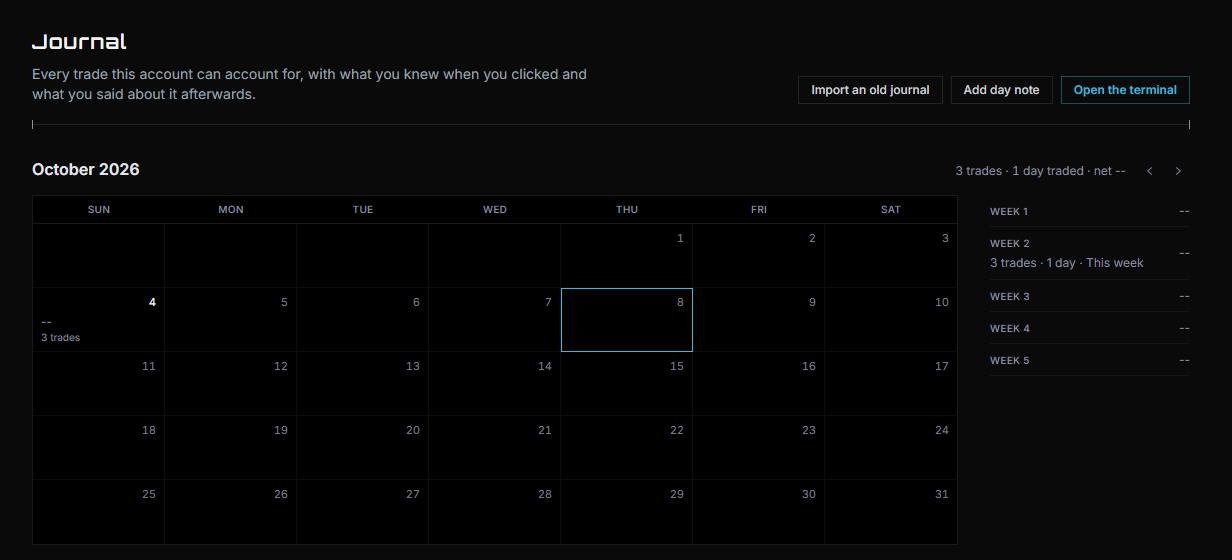
The journal holds every trade with what you knew when you placed it and what you wrote afterwards, along with a calendar, day notes and what price did after you pulled an order or closed early. You can bring in an old journal from photos or scans of its pages, and you check every draft line before it saves.
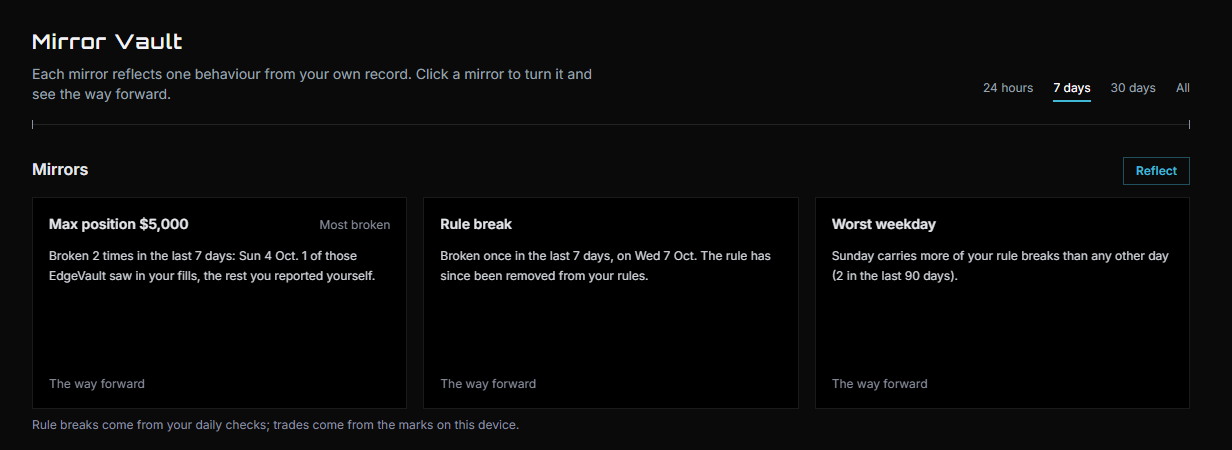
Mirror Vault
Each mirror shows one behaviour from your own record, such as the rule you break most or the weekday it happens on, and turning a mirror over asks what you'll do differently and keeps the plan you write. Reflect asks for a written read of your mirrors, which needs AI processing switched on in your profile.
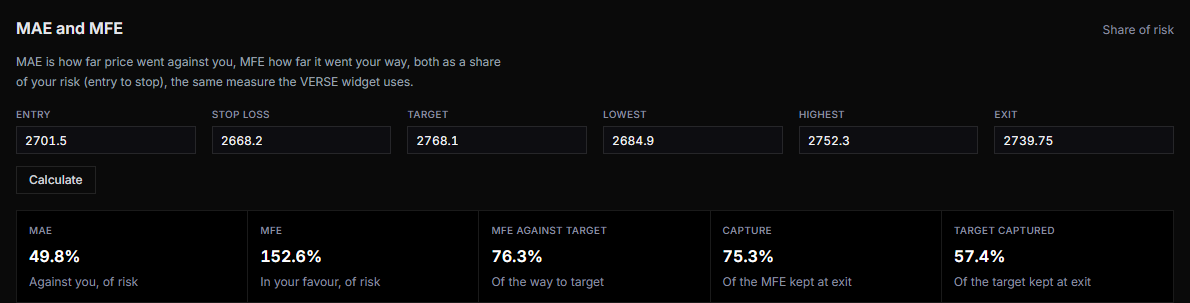
MAE and MFE
The Journal tab on VERSE's page works out MAE and MFE from your entry, your stop and the lowest and highest price the trade reached, as a share of your risk, so you can see how far it went against you and how far it went your way. Strategies then lists the emotions you tagged and the setups you named, with your best, worst and average R-multiple.
Updated 28 October 20266 min read